Trainz Instructions
Using the RailDriver with Trainz
Software
Currently Supported: Windows XP, Windows Vista (32/64), Windows 7 (32/64), Windows 8 (32/64), Windows 8.1, Windows 10
Downloads: Installation Package v.1.4.1.6 (1.5 MB) (for Trainz 2006, Trainz 2009, Trainz 2010, and Trainz 12 without SP1); Installation Package v.1.4.1.20 (1.46 MB) (for Trainz 12 SP1)
Contains:
- Trainz Driver
- RailDriver™ Cab Maker
- RailDriver™ Calibration
By downloading this software, you agree to our Terms & Conditions.
Installation
- Install Trainz.
- Download and install rdts2009.exe (v.1.4.1.6), unless you have Trainz 12 SP1. If you have Trainz 12 SP1, download rdts12sp1.exe (v.1.4.1.9) instead.
- After selecting the language and agreeing with the EULA, you'll get to a screen with a blank line and a "Browse" button. Click on "Browse" and navigate to where your version of Trainz is installed:
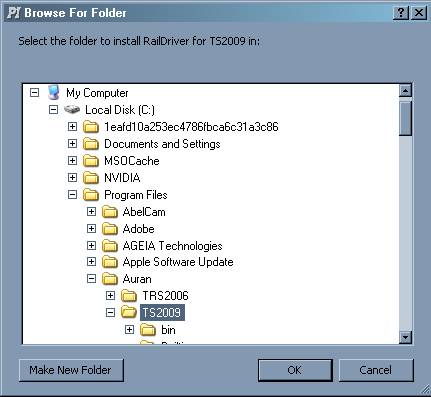
This location yields the following:
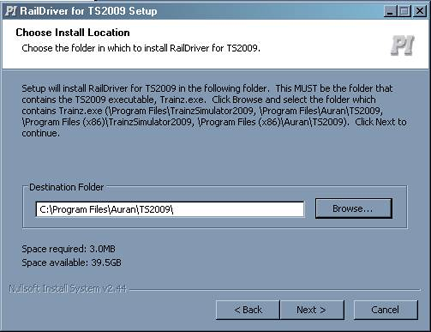
Note: It is possible for your installation to be in a different location. This is just an example. Please be sure you know where exactly you have installed Trainz, including whether or not it is installed in Program Files (64-bit system) or Program Files (x86) (32-bit system).
4. Click on "Next," then on "Install." Once the installer is finished the Calibration Tool should run. Just follow the instructions to get your RailDriver calibrated.
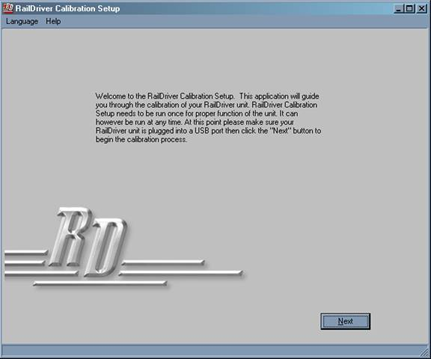
5. Start up Trainz. When you've selected a route and it loads, choose "Cab Control" and your RailDriver display should switch from rd to 0.
6. Drive your train!
Common Problems
The RailDriver controller does not function in Trainz, or the status window on the controller just shows "rd."
This means the RailDriver software hasn’t been installed into the correct location. When installed correctly, your folder for Trainz should look like the following:
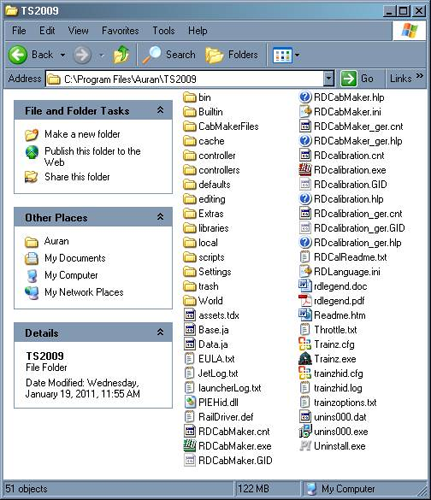
If you don’t have all of these folders and folders in the same location, run rdts2009u.exe again and double check your installation path.
I have Trainz 12 SP1 and some of the controls on the RailDriver do not work.
Please update your installation to the latest version intended specifically for Trainz 12 SP1.
No matter how many times I calibrate, the levers don't match the information in Trainz.
First, check in the ’controller’ folder for the Modern.rdm file, and the ’controllers’ folder for ModernCalibration.rdm. Both of these files should be in their respective locations, and the Date Modified lines should match. If these 2 dates do not match, you will need to make a copy of the ModernCalibration.rdm file and rename it to Modern.rdm and place this in the ’controller’ folder. This problem is most common when Trainz is not installed on the default C:\ Drive and on some Windows 7 setups.
All of the levers work well, but I’m having a hard time getting the throttle to reach 8.
To fix this, you will need to run RDcalibration.exe again, but when calibrating the throttle and you reach the very top/bottom for calibration, move the lever away from the end just a bit. This will give you a bigger window for the 8th throttle notch instead of a single point.
When running a train in DCC mode, the RailDriver isn’t as accurate as using a mouse.
The RailDriver wasn’t designed with DCC mode in mind. While it does work in DCC mode, it functions a bit differently than mouse control and takes some getting used to.
Need Help?
Our tech support department would be glad to answer any questions you may have! Just call us at 1-800-628-3185 ex. 19 (Monday through Friday, 8AM - 5PM eastern time), or e-mail us at tech@raildriver.com.